Audio Deck saves named profiles that each pin a default output and input device, then switches Windows to a profile in one click, one command, or one Stream Deck button. Profiles live in a local JSON file. No account, no cloud, no background service.
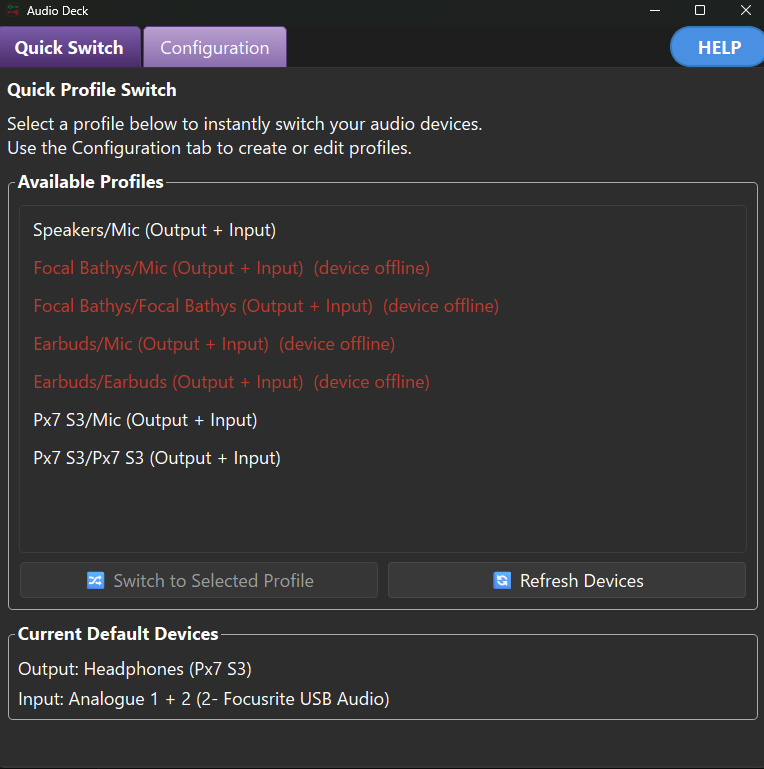
Quick Switch: pick a profile and switch. Offline devices are marked and applied automatically when they reconnect.
Speakers for music, a headset for calls, an interface for recording. Save each as a profile and move between them without touching Windows sound settings.
Each profile pins one default output device and one default input device. Switch to a profile and Windows changes both at once.
The Quick Switch tab lists every profile. Click Switch to Selected Profile, or just double-click a profile to apply it.
--list and --profile NAME run headless with a process exit code, so any script or launcher can drive it.
Map a profile to a physical key with BarRaider's Advanced Launcher plugin, or a one-line batch file. One press, one setup.
Pin a device that is currently off, like a Bluetooth headset. The moment it reconnects, the pending switch is applied automatically.
If one device in a profile is missing, the rest are still applied and the missing one is reported, so a switch never silently half-fails.
The device list refreshes on Windows device changes and periodically. Refresh Devices forces an immediate rescan on demand.
Profiles are stored as JSON under %LOCALAPPDATA%. Runs per user, no admin rights, nothing leaves your machine.
Check for a newer release straight from the Help menu, so you always know when an update is available.
Launch it twice and the window you already have comes to the front, rather than a second copy competing over the same profiles. Command-line switching is exempt, so Stream Deck keys keep working while the window is open.
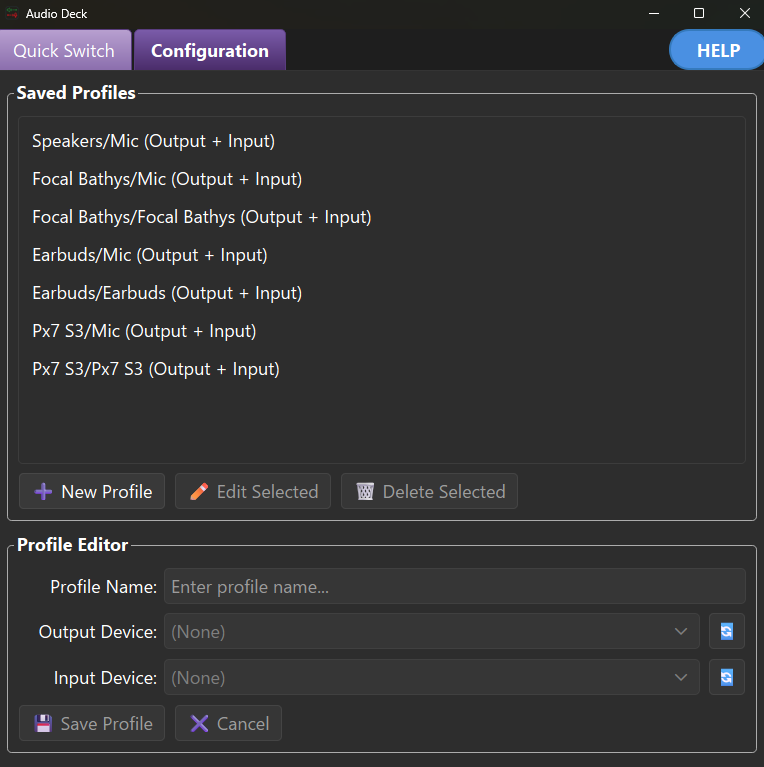
Create and edit profiles on the Configuration tab. Name the profile, pick an output device and an input device from the live dropdowns, and save.
Configuration: the profile editor with live output and input device dropdowns.
With no arguments Audio Deck opens the GUI. With --list or --profile it runs headless and returns an exit code, which is exactly what a Stream Deck button or a batch file needs. Headless switches are never blocked by the running window, so a key still works while the app is open.
# List all profiles AudioDeck.exe --list # Switch to a profile by name AudioDeck.exe --profile "Gaming Setup" # Version, help, or launch the GUI AudioDeck.exe --version AudioDeck.exe --help AudioDeck.exe # no args = GUI
# Application AudioDeck.exe # Arguments --profile "Gaming Setup" # One key per setup. Press it, # the default output and input # devices switch instantly.
Audio Deck follows a four-layer clean architecture: UI and CLI are clients of the application layer, which orchestrates a pure domain, while infrastructure implements the domain's interfaces against Windows Core Audio and the filesystem. Dependencies point inward and are wired by constructor injection in an explicit composition root, one for the GUI and one for the CLI. Structural tests parse the source on every run, so a layering violation fails the build rather than being caught in review.
Download the newest release with one click. Free and LGPL-3.0 with no account and no cloud; your profiles live in a local JSON file on your machine.
Latest releaseWindows 10 or 11, 64-bit
Download for WindowsRun the setup: it installs per-user, so no administrator rights are needed.
What's new in this release · All releases · Source on GitHub · Build from source